

We offer complete printer setup and troubleshooting
services to ensure reliable printing for home offices and
small business environments.


Full unboxing & hardware check
Wi-Fi/USB/network connection
Driver/software install
Mobile printing (Air Print, app setup)
Scan/copy/fax configuration
Print quality testing
Paper jams & misfeeds
Offline / Wi-Fi connection issues
Faded/streaky/blank pages
Driver errors & updates
Slow printing or error codes
Scanner/copier failuress

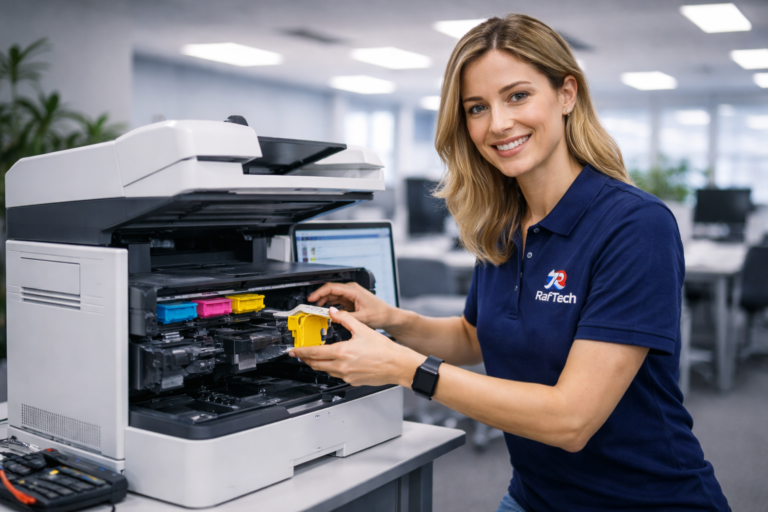
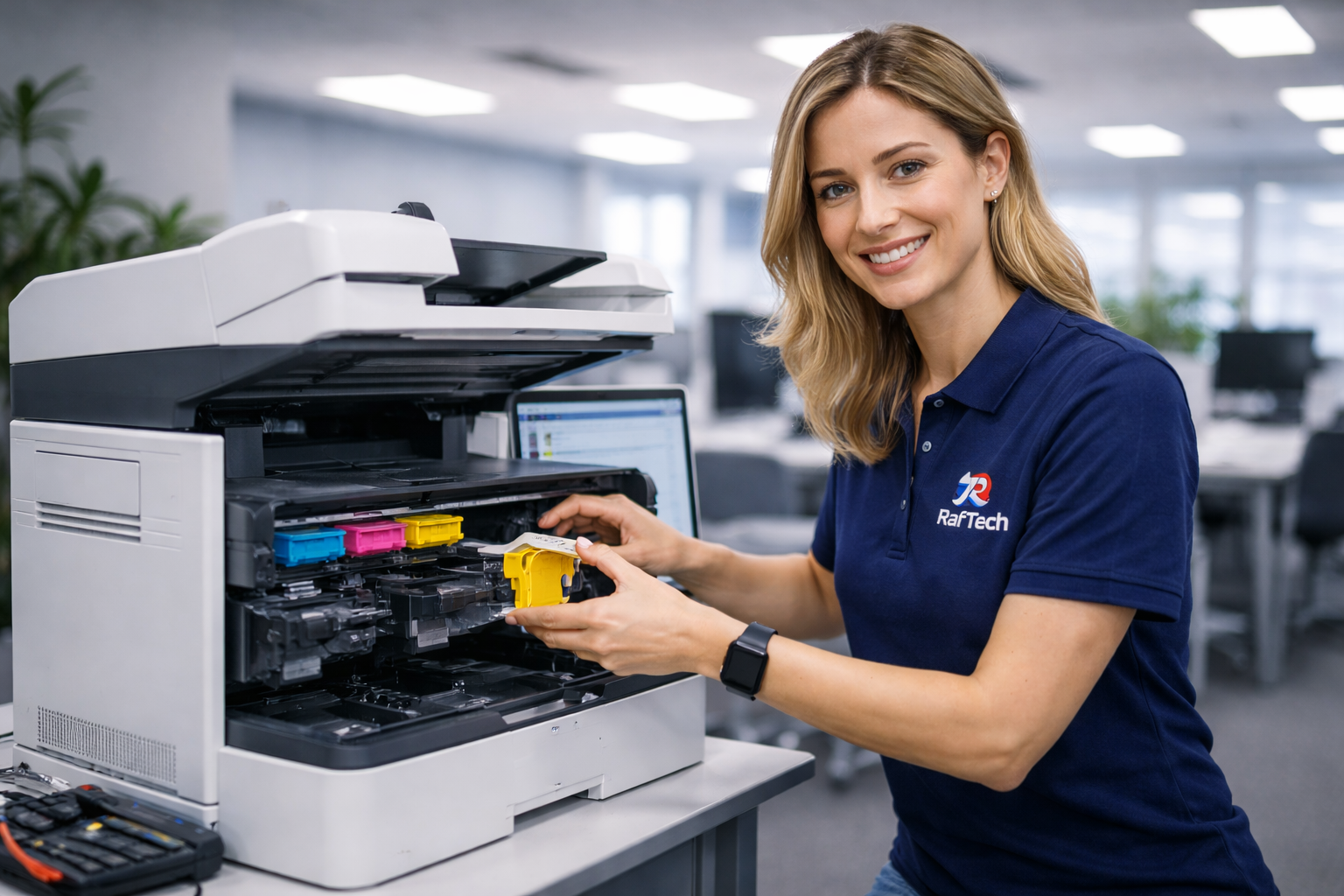
Our team at RafTech is here to help you with any installation or repair needs. Whether at home or your business, We ensure a smooth experience with clear communication and reliable service.
To set up your printer, first unpack it and place it close to your computer. Insert the ink cartridges and load paper into the tray. Connect the printer to your computer using a USB cable or Wi-Fi. Follow the on-screen instructions on your computer to install the printer driver, and then print a test page to ensure it’s working properly.
If your printer isn’t printing, check if it’s turned on and connected to your computer. Ensure there’s paper in the tray and the ink is not empty. You can restart the printer and your computer, and check for any error messages. If the problem persists, try running the printer troubleshooter on your computer.
To fix a paper jam, first turn off your printer. Gently pull out any jammed paper from the tray or output area. Check for small bits of paper stuck inside and remove them. Ensure you’re using the right type and size of paper for your printer and reload it correctly before turning the printer back on.
Blurry prints can be caused by low ink, dirty print heads, or using the wrong paper. Check the ink levels and clean the print heads using your printer’s maintenance settings. Make sure you are using a suitable paper type for your project, and adjust the print quality settings in your printer preferences.
To connect your printer to Wi-Fi, start by navigating to the network settings on the printer’s control panel. Choose your Wi-Fi network and enter the password when prompted. Once connected, you should see a confirmation message. Test the connection by printing a page from your computer or mobile device.
If your printer shows as offline, check the connection between your printer and computer. Make sure both are on the same network. Restart both devices and check the printer’s status in the control panel. Update the printer driver if necessary and ensure it’s set as the default printer.
If you have more questions or need further assistance, we’re here to help.
To set up your printer, first unpack it and place it close to your computer. Insert the ink cartridges and load paper into the tray. Connect the printer to your computer using a USB cable or Wi-Fi. Follow the on-screen instructions on your computer to install the printer driver, and then print a test page to ensure it’s working properly.
If your printer isn’t printing, check if it’s turned on and connected to your computer. Ensure there’s paper in the tray and the ink is not empty. You can restart the printer and your computer, and check for any error messages. If the problem persists, try running the printer troubleshooter on your computer.
To fix a paper jam, first turn off your printer. Gently pull out any jammed paper from the tray or output area. Check for small bits of paper stuck inside and remove them. Ensure you’re using the right type and size of paper for your printer and reload it correctly before turning the printer back on.
Blurry prints can be caused by low ink, dirty print heads, or using the wrong paper. Check the ink levels and clean the print heads using your printer’s maintenance settings. Make sure you are using a suitable paper type for your project, and adjust the print quality settings in your printer preferences.
To connect your printer to Wi-Fi, start by navigating to the network settings on the printer’s control panel. Choose your Wi-Fi network and enter the password when prompted. Once connected, you should see a confirmation message. Test the connection by printing a page from your computer or mobile device.
If your printer shows as offline, check the connection between your printer and computer. Make sure both are on the same network. Restart both devices and check the printer’s status in the control panel. Update the printer driver if necessary and ensure it’s set as the default printer.
If you have more questions or need further assistance, we’re here to help.
Get in Touch
Quick Links
RafTech 2026